

Turner Time: AI and Microsoft 365
1
Know Your Version of Copilot
You either have a the full version of Copilot that’s called Microsoft 365 Copilot Premium or you have Microsoft 365 Copilot Basic.
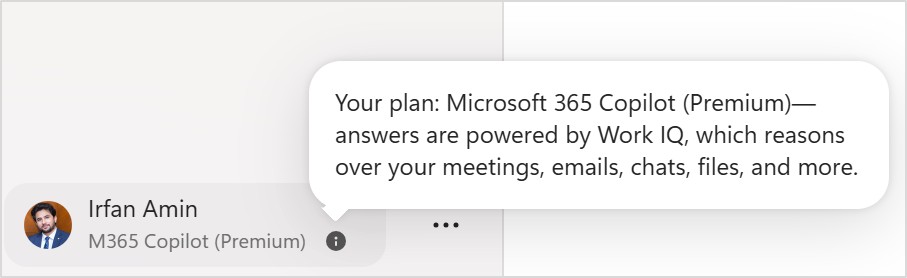
Microsoft 365 Copilot Premium:
The full version will give you access to all your data, anything you have access to in 365, including files, Teams chats, not just emails, meetings, and things on SharePoint, etc.
After installing on your computer, you will see in the lower left section under your name that it is a premium version of Copilot (see the snip to the right).
Microsoft 365 Copilot Basic:
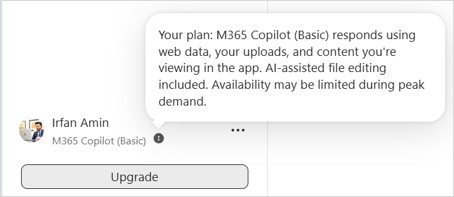
The basic version now gives you access to anything in your inbox or your calendar or your other folders in Outlook when you search from or work from the Copilot app with inside Outlook.
It doesn’t do that if you use the standalone app. It only works if you do it inside Copilot within Outlook. So you could ask or say in Outlook “hey, what’s my top three emails for today in Outlook?” It’s going to tell you. If ask for the same in the standalone Copilot Basic, it says, I don’t have access to that data.
After installing on your computer, you will see in the lower left section under your name that it is a basic version of Copilot (see the snip to the right).
It doesn’t do that if you use the standalone app. It only works if you do it inside Copilot within Outlook. So you could ask or say in Outlook “hey, what’s my top three emails for today in Outlook?” It’s going to tell you. If ask for the same in the standalone Copilot Basic, it says, I don’t have access to that data.
After installing on your computer, you will see in the lower left section under your name that it is a basic version of Copilot (see the snip to the right).
2
How to Add Custom Instructions for Copilot?
Custom Instructions allow you to personalize Microsoft 365 Copilot by telling it how you work, communicate, and what type of responses you prefer. By setting your preferences, Copilot can provide more relevant, consistent, and personalized assistance across Microsoft 365 apps. This is especially useful for defining your writing style, role, preferred tone, and common business tasks.
Steps to Add Custom Instructions

Open Microsoft 365 Copilot.
Left click three dots to the right of your profile picture in the lower left section.
Left click Settings.
Left click Personalization.
In “Custom Instructions” section, toggle on the switch and left click “Edit instructions.
Add details about yourself, such as your role, responsibilities, preferred communication style, and response preferences.
Left click “Save instructions”.
Here is its video tutorial:
Microsoft 365 Upskilling Program (per Employee):
Four, one-hour live webinars, and weekly, 1:1 follow up coaching session available before and after each group training meeting.
Avoid information overload and maximize your time
Find emails, documents, files, and any information in seconds
Process and organize emails efficiently
Consolidate all tasks, projects, and notes into one system
Efficiently manage SharePoint, OneDrive, and/or other cloud storage
Use keyboard, voice, and “templates” to handle interruptions/distractions
ALSO available Google Workspace, and/or iWork (Apple) training/coaching versions.
Using Copilot in Microsoft apps*